
Connect to Oracle Fusion securely with your own Fusion identity
Short answer: Data Collage runs read-only SQL in Oracle Fusion through its BI Publisher reporting layer. Connect with your Fusion username and password or use Fusion single sign-on (SSO), including your organization’s MFA. You do not need database credentials.
If you work with Oracle Fusion, a simple data question can turn into a reporting task: open BI Publisher, create a data model, enter your SQL, and run it. Data Collage gives consultants, administrators, and analysts a desktop workbench for that workflow on Windows and macOS.
The connection still goes through Fusion’s reporting services. You use your own Fusion identity, and Data Collage handles the gateway setup.
How do you connect to Oracle Fusion with Data Collage?
You need your Fusion home URL, a working Fusion login, and permission to upload and run BI Publisher data models and reports. Report-viewing access alone is not enough because Data Collage deploys a gateway in your BI Publisher catalog.
Your security administrator can confirm the appropriate role. The setup guide references BI Publisher Data Model Developer or an equivalent role; your organization may use custom roles.
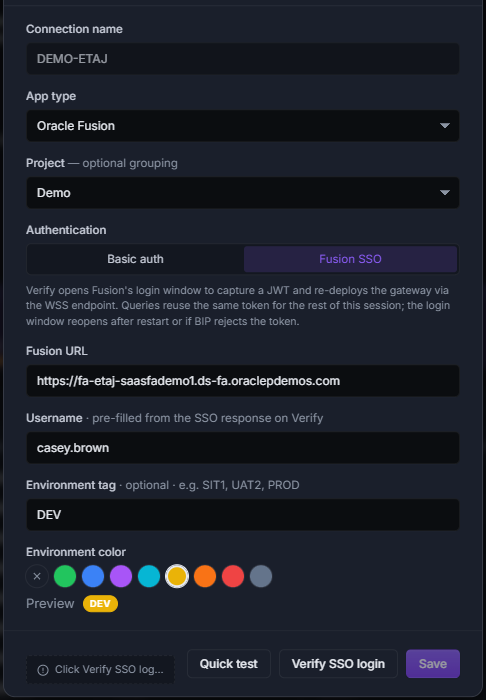
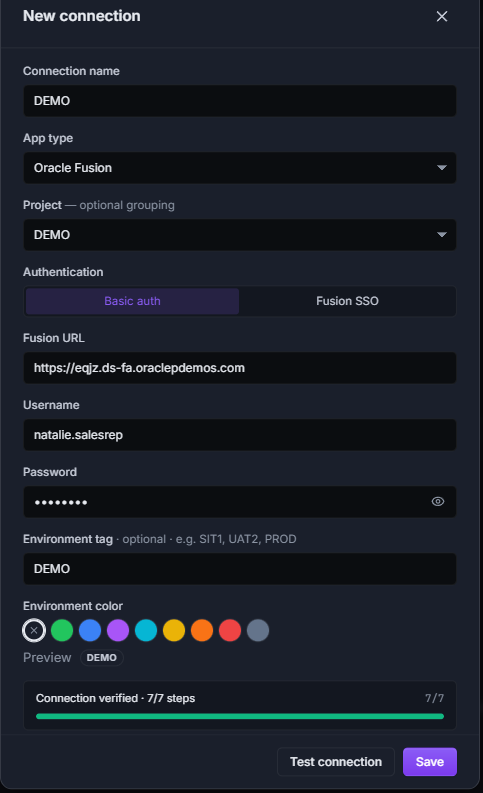
Open the Connections panel, choose New connection, enter a connection name and your Fusion URL, then select an authentication method.
Basic authentication
Enter your Fusion username and password if your environment permits password-based authentication. Data Collage stores the password in your operating system’s secure credential storage: the Windows Credential Vault on Windows and secure storage on macOS.
The password is not stored in plain text or in Data Collage’s local connection database.
Fusion SSO
If your organization uses single sign-on, select Fusion SSO and leave the username blank. Click Verify SSO login, then sign in through the Fusion login window, completing any required MFA.
The window closes when login completes, and Data Collage fills in your username. With SSO, Data Collage uses a session token rather than collecting or storing your Fusion password.
Restarting the app starts a fresh sign-in session. If Fusion’s token expires or is rejected during a query, the login window reopens. After you sign in again, Data Collage retries the query automatically.
What happens during the first connection test?
For Basic authentication, click Test connection. For SSO, Verify SSO login performs the equivalent setup. A progress indicator shows the setup and validation status. The process includes:
- Checking access to the BI Publisher catalog.
- Creating the
NCDataCanvasfolder if needed. - Cleaning up stale gateway files.
- Uploading the gateway data model.
- Uploading the gateway report.
- Running
SELECT 1 FROM DUALto check connectivity.
The gateway lives under your user’s catalog space at /~{username}/NCDataCanvas/. It is provisioned for that user on the Fusion instance and reused for later connections.
The Save button becomes available only after a successful test or verification for the current connection settings.
For the full walkthrough, see Your first query.
What does your Fusion identity control?
Data Collage authenticates BI Publisher requests as your signed-in Fusion user. Your account needs the catalog permissions required to deploy and run the gateway.
Access to individual business records also depends on the SQL you run. Oracle explains that physical SQL against base tables is not automatically subject to Fusion data-security restrictions. Where business-unit, ledger, or other user-specific restrictions are required, queries must use the appropriate secured views or security filters. See Oracle’s guidance on BI Publisher secured list views.
Data Collage supports :xdo_user_name for queries that use the report user’s identity in security filters. The variable identifies the user; it does not apply those filters by itself. Oracle documents how this system variable works.
Data Collage separately enforces read-only SQL: only SELECT and WITH … SELECT statements pass its local validation. Read Read-only SQL enforcement for details.
Keep production and test connections easy to identify
Create separate connections for PROD, UAT, SIT, and DEV. Give each an environment tag and a color: red for production, for example, and green or blue for development.
The environment chip appears beside the connection, and editor tabs carry the connection’s color. Before running a query, you can see which environment it will reach.
Run a simple connectivity check
After saving your connection, open an editor tab and run:
SELECT 1 AS connection_check
FROM   dual
A result of 1 confirms that SQL can run through the gateway. Next, use an approved query against the business data you need. A successful connectivity check does not establish access to every table or confirm that a business query applies the required security filters.
Where do your credentials and query results go?
Data Collage sends SQL directly to your Fusion instance over HTTPS and returns results to your desktop. Queries, results, and Fusion credentials are not sent to Newarc Consulting. The license service validates your license without receiving query data.
The app has no telemetry or cloud sync. Current result sets are held in memory; saving SQL, analyses, or exports creates local files you choose to keep. Review the Security and privacy overview for the published data flow and network destinations.
Frequently asked questions
Do I need a database password to run SQL in Oracle Fusion?
No. Data Collage uses your Fusion identity and BI Publisher reporting services. It does not require a database username, password, or direct database connection.
Can I use Oracle Fusion SSO with MFA?
Yes. Choose Fusion SSO and sign in through the Fusion login window, including any MFA required by your organization.
What BI Publisher permissions do I need?
Your Fusion user must be able to upload and run data models and reports. Ask your administrator to confirm BI Publisher Data Model Developer or an equivalent role with the required permissions.
Does signing in automatically apply Fusion row-level security?
No. Authentication identifies the user. BI Publisher physical SQL needs appropriate secured views or security filters to restrict the business records returned.
Do I have to deploy the gateway for every query?
No. Data Collage provisions the gateway during the initial successful connection setup and reuses it for subsequent queries.
Related features
- The SQL editor — write Fusion queries with autocomplete and bind parameters.
- Read-only SQL enforcement — understand what the app allows before SQL leaves your machine.
- Saved analyses, history, and snippets — reuse your work across Fusion environments.
Want to use Data Collage with your Oracle Fusion environment? Get in touch with Newarc Consulting to discuss your requirements and how to get started.