Features

Everything Data Collage does, on one page.

Data Collage is a desktop SQL workbench purpose-built for Oracle Fusion SaaS. The features below cover what ships in v1 — and what's next.


Connect

Multiple connections, two auth methods, zero plaintext credentials.

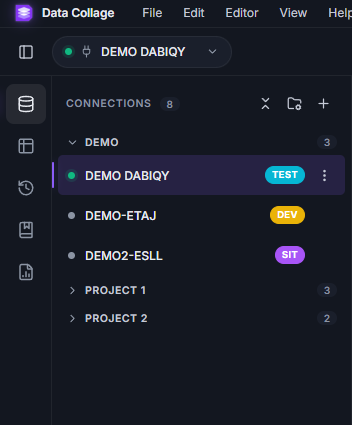
Save one connection per Fusion environment. Tag them PROD / TEST / DEV so you always know which pod you're hitting before pressing Run.

Basic auth

Username + password against your Fusion instance. Passwords are stored only in the Windows Credential Vault — never in SQLite, never in plaintext on disk.

Fusion SSO with JWT

For environments that require SSO, Data Collage opens the Fusion login window, captures the JWT, and reuses it for BIP calls. Tokens are kept in memory and refreshed automatically when BIP rejects them.

Environment tags

Colour-coded chips (PROD / TEST / DEV / SANDBOX, custom labels supported) appear next to every connection and in the title bar — no more accidentally running an UPDATE-shaped SELECT against the wrong pod.

Test before save

A six-step Test Connection probes BIP, deploys the read-only gateway report under your user folder, and runs a SELECT 1 smoke test. Save is gated on a passing test, so a saved connection is always a working one.

Edit

A real SQL editor, not a textbox.

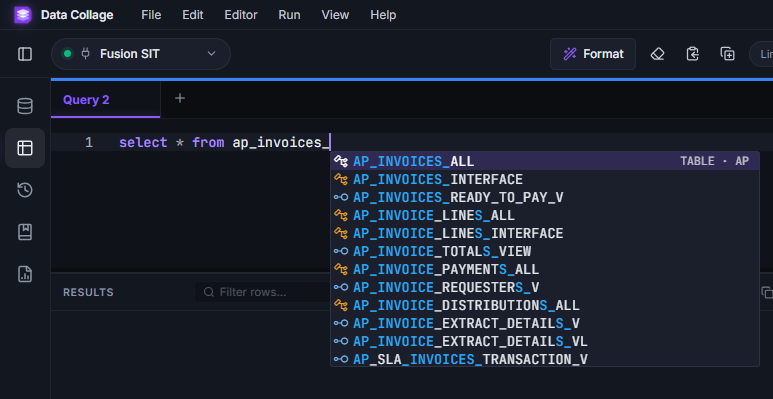
Monaco — the same editor that powers VS Code — with Oracle-aware tooling layered on top.

Syntax highlighting & autocomplete

Oracle SQL keywords, functions, and operators are highlighted. Identifiers complete from the metadata catalog as you type.

Curated function catalog

Bundled reference for the Oracle SQL functions you actually use, with signatures, descriptions, and one-click insert. Add your own — your additions persist locally.

Custom snippets

Define short codes (e.g. seldSELECT DISTINCT) and full templates with tabstops. Snippets are stored locally and survive upgrades.

Bind parameters

Use :name placeholders in your SQL. Data Collage detects them, opens a dialog for values, and substitutes them safely — the validator and the BIP gateway never see the bind syntax.

Format & find

One-shot SQL formatting (Shift+Alt+F), full Monaco find/replace with regex, multi-cursor, and toggleable line/block comments. All the keystrokes you already know.

Multiple tabs

Open as many SQL tabs as you need. Each tab keeps its own results, errors, and execution time independently — switch between tabs without losing context.

Run

Read-only, enforced at three boundaries.

Fusion SaaS doesn't expose direct database connectivity. Data Collage routes queries through a deployed BI Publisher report — and validates every statement before it leaves your machine.

Local AST validation

Every query is parsed locally and rejected unless it's a SELECT or a WITH CTE that resolves to a SELECT. DML, DDL, and PL/SQL are blocked at the editor.

BIP gateway you control

On first Test Connection, Data Collage uploads a read-only BIP data model into your Fusion catalog under /~username/NCDataCanvas/. Your DBAs see normal BI Publisher traffic.

No DB password, ever

Auth uses your Fusion identity. The app has no database credentials — because it never needs any.

Errors that point to the right line

BIP fault strings are parsed into structured error panels. ORA codes are extracted, line numbers are mapped back to your editor, and the offending line is highlighted.

Results

A grid that scales — and an export that just works.

Powered by AG Grid, so a quarter-million-row result set behaves the same as a four-row one.

Sort, filter, hide

Column-level filtering and sorting on every result. Hide columns you don't need and the layout sticks across runs of the same query.

Formula columns with chained references

Add computed columns inline using a safe expression language. Reference real columns and other formula columns — chain NET_DUE = INVOICE_AMOUNT - NVL(AMOUNT_PAID, 0) then NET_DUE_PCT = NET_DUE / INVOICE_AMOUNT * 100. Cycle detection, NULL-safe arithmetic, and NVL fallbacks ship out of the box. Rename or delete a formula and dependents are pruned with a toast — no orphan columns.

Per-column number & date formats

Right-click any column header to apply a number or date format — thousands separators, decimal places, percent, scientific, or a currency from a curated catalog (USD, EUR, GBP, CAD, AUD, JPY, INR). Date formats include ISO, US, EU, Oracle, datetime, and relative ("3 days ago"). Formats survive across re-runs and travel with Saved Analyses.

Quick column actions

Right-click a column header for Keep only this column (one click to focus on one field), Copy unique values (deduped, newline-separated, honors filters), and Copy as IN clause. The IN-clause dialog handles text vs numeric, escapes single quotes correctly, wraps long lists onto multiple lines so Monaco can still highlight them, and auto-chunks past Oracle's 1,000-value limit into OR-joined blocks.

Column navigation

Toolbar buttons jump straight to the first or last visible column — handy on wide result sets. The target column briefly flashes so you don't lose your place.

Export to CSV or XLSX

One-click export of the current view (filtered or not) to CSV or Excel. Numeric columns export as numbers, dates as dates — no string-cleanup required at the other end. Currency formats survive the round-trip into Excel via native format strings.

Active-state pills + one-click clear

A pill row above the grid tracks every active overlay — duplicates filter, top-N filter, formatted columns, linked columns. Each pill has a × (or Clear) to remove just that overlay. Right-click any header or cell → Clear all filters wipes the column filter model in one shot, so you don't have to clear three column filters one at a time.

Row count & execution time

Every result tab shows total rows and wall-clock execution time at a glance, so you can spot a regression the second it appears.

Directives

Pin the presentation to the SQL itself.

A small set of <code>--@</code> comment directives at the top of any query control how the result is presented. Oracle ignores them as plain comments; Data Collage interprets them on the way to the grid. They're text, so they version-control, paste, and share like any other SQL.

--@title

Set the tab title from the query. Updates live as you type — the tab renames within half a second of finishing the directive line. Survives Save Analysis and shows up as the default name in the Save dialog.

--@hide and --@show

Hide specific columns (--@hide: CREATION_DATE, LAST_UPDATE_DATE) or flip it around and show only the columns you want (--@show: INVOICE_NUM, AMOUNT_PAID). Unknown names are silently ignored — a typo never blanks the grid.

--@column_order

Order columns explicitly with a * wildcard for everything else: --@column_order: INVOICE_NUM, INVOICE_DATE, *, AMOUNT_PAID. Listed columns land at fixed positions; * expands to all unmentioned columns in their original CSV order.

--@format

Per-column number and date formats baked into the query: --@format: INVOICE_AMOUNT = currency(USD), INVOICE_DATE = date(MM/DD/YYYY). The currency function accepts ISO codes (USD/EUR/GBP/CAD/AUD/JPY/INR), and JPY-style zero-decimal currencies just work — Intl.NumberFormat handles the per-currency rules.

Insert from the editor

Right-click in the SQL editor → Insert directive ▸ drops a template at the top of the document with the cursor parked in the right spot. Type once, learn the syntax, type it manually next time.

Stripped from the wire, kept in history

Directives never reach the BIP gateway — we replace them with bare -- in the payload (line numbers stay aligned for error highlighting). They're preserved verbatim in query history and Saved Analyses, so reopening any past query re-applies the same presentation.

Analyses

Save the whole analysis, not just the SQL.

A Saved Analysis is a single portable <code>.dcanalysis</code> file that round-trips your SQL, formula columns, column formats, hidden columns, column order, and bind-parameter defaults. Hand one to a teammate; they open it, click Run, and see exactly what you saw.

One file, full state

JSON-on-disk with a versioned schema. SQL, formulas, hidden columns, column order, per-column number/date formats, and bind defaults all travel together. Open an analysis in a new tab and your view rebuilds itself.

Save / Save as / dirty tracking

File → Save as Analysis… creates it; Save Analysis overwrites and is gated on a real dirty diff. Tab titles show a when there are unsaved changes, and closing a dirty tab pops a Save / Don't save / Cancel guard.

Analyses panel

Sidebar tab with search, module filter, and per-row Open / Open in new tab / Rename / Delete. Grouped by module, sorted by most-recently updated, so the analysis you touched last is always on top.

Configurable folder, shareable files

Defaults to Documents\Data Collage\Analyses\; point it at a shared OneDrive or network folder in Settings and your whole team sees the same library. Or open a one-off .dcanalysis from anywhere via File → Open Analysis….

Bind defaults travel with the analysis

The last bind values you ran with are saved alongside the SQL. Reopen the analysis and the bind dialog pre-fills — no re-typing the as-of date or business-unit ID every morning.

Save your work

History, library, snippets — all local, all yours.

No cloud sync, no telemetry. Your queries stay on your machine.

Query history

Every successful run is logged with timestamp, connection, row count, and execution time. Reopen any past query in a new tab with one click.

Query library

A curated catalog of useful starter queries you can drop into a new tab. For your own reusable work, save it as an Analysis — full state travels with it, not just the SQL.

Custom snippets & functions

Short codes (ddl → DESCRIBE …) and full multi-line templates with tabstops. Your function catalog and snippet list persist locally and follow the app installation.

AI Assist Coming soon

Generate SQL from natural language — grounded in your Fusion metadata.

A query-generation panel is wired into the UI and will go live in a near-term release. The grounding model uses the bundled Fusion metadata catalog so suggestions reference real tables and columns, not hallucinations.

Bring your own key

Plug in your own API key for OpenAI, Anthropic, or Gemini. No prompts or schemas leave your machine without your consent.

Run locally with Ollama

Prefer to keep everything on-device? Point Data Collage at a local Ollama endpoint and run a quantised model on your hardware.

Metadata-grounded prompts

The 9,000+ table/column catalog is used as retrieval context — not stuffed into every prompt — so token usage stays sane and suggestions stay accurate.

Ready to put Data Collage on your desk?

v1 is in early access. Pricing on request.