
A SQL editor built for Oracle Fusion
Short answer: Data Collage provides a desktop SQL editor for Oracle Fusion with table and column autocomplete, Oracle function help, bind parameters, snippets, and SQL formatting. It runs read-only queries through Fusion’s BI Publisher reporting layer.
Writing Fusion SQL often means moving between a browser editor, table documentation, and an error message. Data Collage brings help into the editor so you can spend more time answering the data question and less time looking up names.
What makes this SQL editor specific to Oracle Fusion?
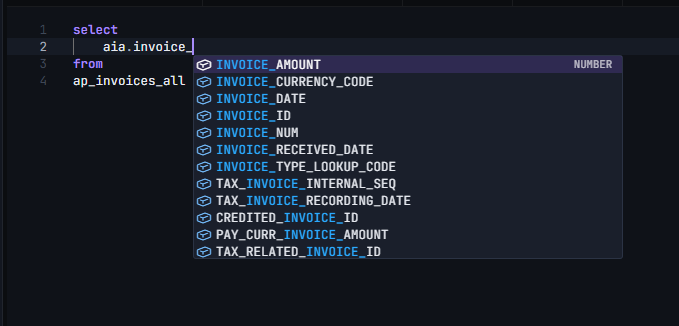
The editor combines familiar code-editing tools with a bundled catalog of common Fusion tables and columns. Syntax highlighting, multi-cursor editing, and find and replace handle the writing; autocomplete helps with the objects you are querying.
- Table names: type
ap_invto see matching Fusion tables. - Column names: type a table alias followed by a dot, such as
ai., to narrow suggestions to that table. - Oracle functions: see signatures and short descriptions as you type.
- SQL keywords: complete clauses such as
SELECT,JOIN, andWHERE.
Hover over a known table or function for more context without leaving the query.
Browse Fusion metadata without running a query
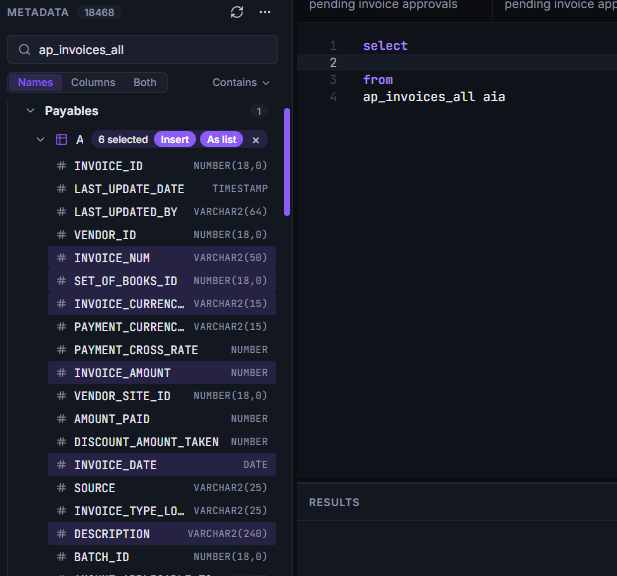
The Metadata panel groups tables by module, including AP, AR, GL, HCM, FA, and INV. Expand a table to inspect its columns and data types; hover for available descriptions.
Search by table name, column name, module, or description. For example, searching for vendor_id helps you locate tables containing that field. Double-click a name to insert it at the cursor, or select several columns and use Insert or As list to build a SELECT list.
The bundled catalog works offline. It is a curated reference, so it does not imply that every Fusion table is included or accessible to your account. Additive metadata overlays let you extend the catalog without replacing the bundled entries.
Use bind parameters to reuse the same query
Write :name wherever you want to supply a value at run time. When you run the query, the Bind variables dialog asks for each value. Data Collage substitutes those inputs before sending SQL to Fusion.
Values remain available in that tab during the session. Save them as bind defaults in a saved analysis when you want to keep them across restarts.
Example: AP invoices for a date range
This example uses start and end dates so you can repeat the review without editing the query each time:
SELECT ai.invoice_num           AS INVOICE_NUM,
       ai.invoice_date          AS INVOICE_DATE,
       ai.invoice_currency_code AS CURRENCY_CODE,
       ai.invoice_amount        AS INVOICE_AMOUNT
FROM   ap_invoices_all ai
WHERE  ai.invoice_date >= TO_DATE(:p_from_date, 'YYYY-MM-DD')
AND    ai.invoice_date <  TO_DATE(:p_to_date, 'YYYY-MM-DD') + 1
AND    ai.cancelled_date IS NULL
ORDER  BY ai.invoice_date DESC
Enter both dates in YYYY-MM-DD format. The end condition includes the selected end date, including records with a time component. Adapt business queries to your organization’s approved reporting security requirements.
Keep everyday editing work quick
Use Shift+Alt+F to format SQL. Short codes expand reusable fragments: ssf becomes SELECT * FROM, while cw inserts a CASE expression. Manage your own snippets through Editor → Short codes….
Select a column and use Wrap in function to surround it with a function such as NVL or TO_CHAR. Use Validate SQL to check server-side parsing without executing the query; validation runs do not enter query history.
Run the SQL you intend to run
Press F5, Ctrl+Enter, or click Run. Selected text takes priority. In a tab with multiple statements, the statement under the cursor runs. Otherwise, the whole tab runs.
Each tab keeps its own session state. After a restart, SQL and the tab list are restored; results and other session-only settings reset. Use a saved analysis to preserve formulas, formats, and bind defaults.
Frequently asked questions
Does Data Collage autocomplete Oracle Fusion table and column names?
Yes. Suggestions come from a curated catalog bundled with the app. Column suggestions can use the table alias in your query.
Do bind parameters create database-side prepared statements?
Data Collage prompts for values and substitutes them locally before sending the SQL. Fusion does not receive the original :name placeholders.
Can I add my own SQL snippets?
Yes. Create, edit, or remove short codes through the editor’s Short codes dialog. Custom snippets remain in your local profile.
Related features
- Read-only SQL enforcement — understand the checks applied before execution.
- Results grid — investigate the rows your query returns.
- Saved analyses — keep bind defaults and presentation with your query.
Want a SQL editor built around your Fusion workflow? Get in touch with Newarc Consulting to discuss your requirements and how to get started.