
Connections
A connection in Data Collage represents one Fusion instance plus its authentication. You set one up once, save it, and reuse it across sessions. This section covers everything beyond the quick path in §4 — SSO, multiple environments, the connection list, and the difference between Disconnect and Delete.
App type
Section titled “App type”Only Oracle Fusion is enabled in V1.
Connection name
Section titled “Connection name”The connection name is the identity used to store the saved password. It can be renamed after the connection is created — if you need a different name.
Environment tag and color
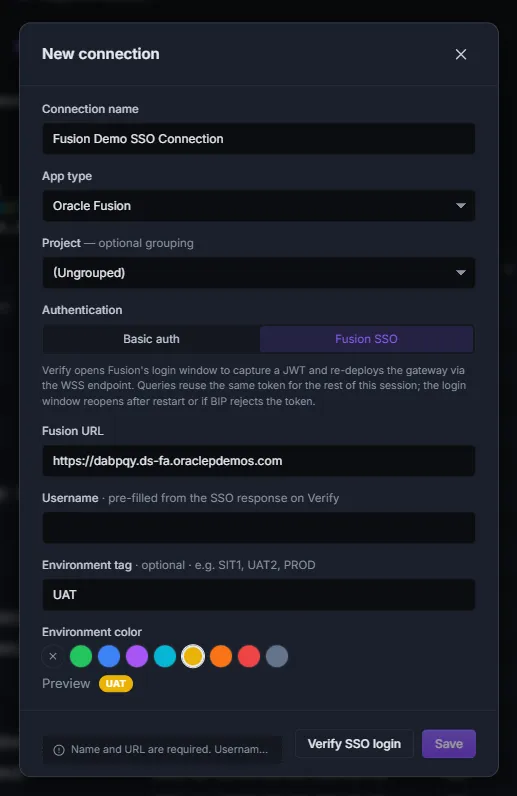
Section titled “Environment tag and color”Both are optional, but highly recommended for production-grade safety. The tag is a short label (PROD, SIT1, UAT2) shown as a colored chip next to the connection name everywhere it appears in the app. Pick a color too — a common convention is:
- Red for production
- Yellow / orange for UAT
- Green / blue for SIT or DEV
This is the cheapest insurance against running an experimental query against Prod by accident.
Basic authentication
Section titled “Basic authentication”Covered in §4 — Step 1. The password is stored in the Windows Credential Manager — never in Data Collage’s database, never on disk in plain text.
Fusion SSO authentication
Section titled “Fusion SSO authentication”If your company requires SSO (or has disabled password-based login for Fusion), use this method instead.
-
Open the New connection dialog (or Edit an existing connection).
-
Under Authentication, click Fusion SSO.
-
Fill in Connection name and Fusion URL as usual. Leave Username blank — it will fill in automatically.
-
Click Verify SSO login at the bottom of the dialog.
-
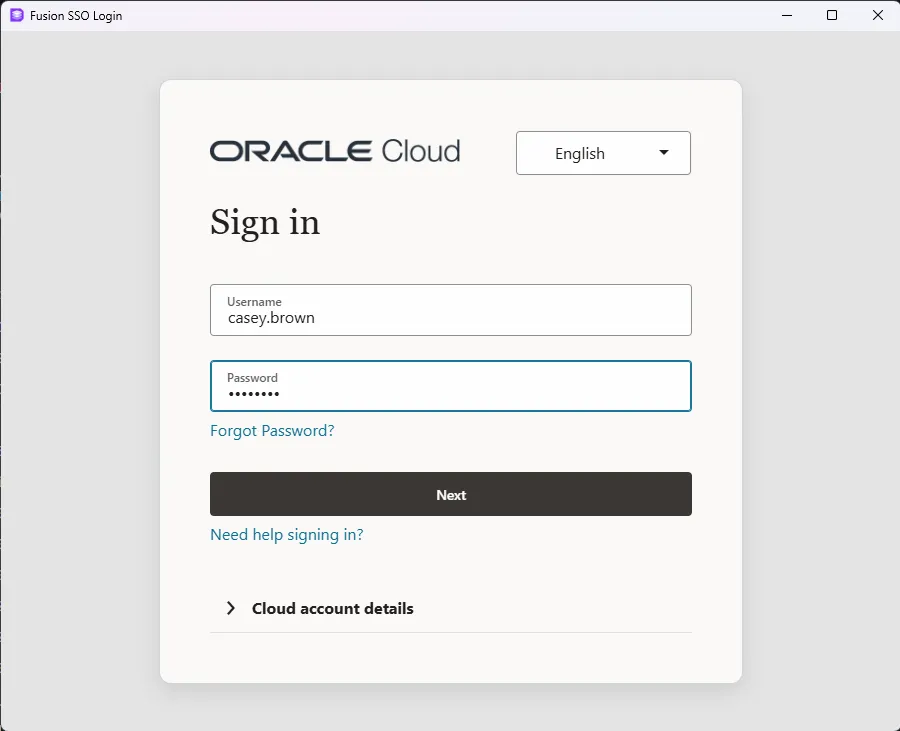
A Fusion login window opens.
-
Log in normally — including any MFA your organization requires. The window closes automatically once login completes.
-
The Username field fills in with the user that logged in. The gateway re-deploys to that user’s catalog space.
-
When Verify succeeds, the Save button activates. Click it to save.
Your Fusion password is never seen or stored by Data Collage when using SSO — only a session token captured from your browser login.
When SSO re-prompts you
Section titled “When SSO re-prompts you”Your SSO session lasts until either of these happens (whichever comes first):
- You restart Data Collage — a fresh session always starts unauthenticated.
- Fusion’s session token expires or is rejected by BI Publisher mid-query — this can happen at any time during a long-running session, depending on your Fusion identity provider’s token lifetime.
When the login window reopens, just sign in again — your query is retried automatically once you re-authenticate.
Test connection
Section titled “Test connection”For Basic auth, click Test connection to run the 6-step gateway provisioning + smoke test (full breakdown in §4 — Step 2). For SSO, Verify SSO login runs the equivalent — provisioning the gateway under the logged-in user’s catalog space.
The Save button stays disabled until a successful Test (or Verify) for the current form values. This is intentional — it prevents saving a connection that can’t actually reach Fusion.
Multiple connections
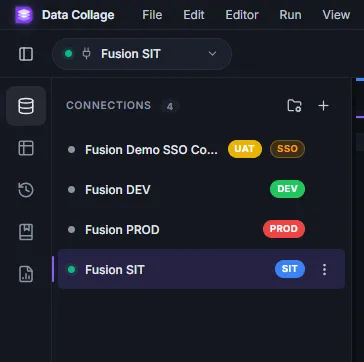
Section titled “Multiple connections”Set up as many connections as you need — typically one per environment (Prod, UAT, SIT, DEV). They all live in the Connections panel and you can switch between them by clicking the row of the one you want to query against.
Reading the connection list
Section titled “Reading the connection list”Each row in the list shows, from left to right:
- Status dot — color tells you the live state (see legend below)
- Connection name + environment chip (if you set one)
- SSO chip — small “SSO” badge if the connection uses Fusion SSO
- Pin icon — indicates the default connection (see Pinning a default)
- Disconnect, Edit, Delete icons (visible on hover or when active)
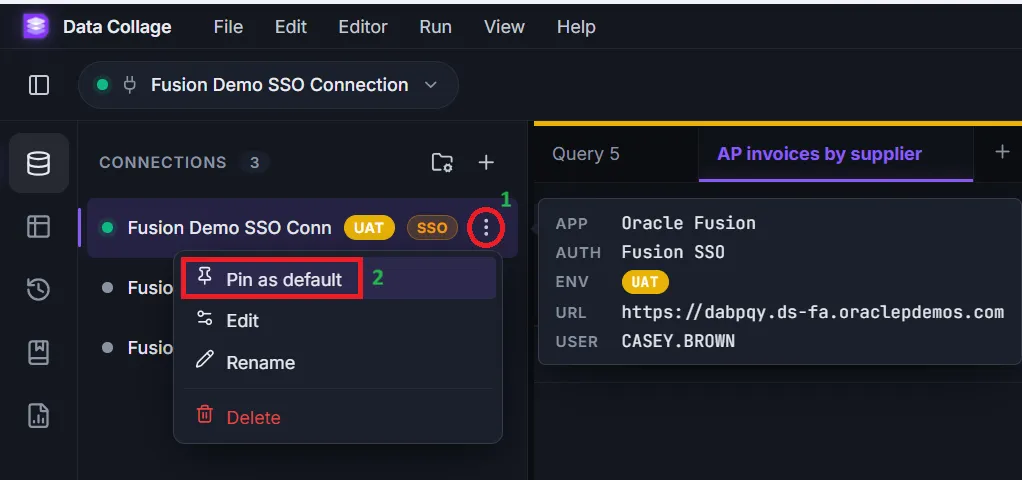
Hover over a row to see a tooltip preview with App, Auth method, Environment, Fusion URL, and Username — useful when you have several similar connections.
Status dot legend
Section titled “Status dot legend”| Color | Meaning |
|---|---|
| Green | This is the active connection, and the last operation succeeded. |
| Yellow | This is the active connection, and an operation (Test, Verify, query) is in progress. |
| Red | This is the active connection, and the last operation failed. |
| Grey | Not the active connection. (Connections that aren’t active never light up, regardless of whether they’d work.) |
Pinning a default connection
Section titled “Pinning a default connection”Click the pin as default option on a connection to mark it as the session default. The pinned connection is used automatically for:
- New tabs you open from File → New Tab
.sqlfiles you open from the file system.dcanalysisfiles you open
Only one connection can be pinned at a time. Click the un-pin default option to unpin.
Disconnect vs Delete
Section titled “Disconnect vs Delete”These two actions look similar but do very different things — make sure to use the right one.
| Action | What it does | When to use |
|---|---|---|
| Disconnect (power icon) | Ends the active session for the current connection. The connection and its password stay saved; the status dot goes grey. | Switching environments mid-session, or freeing up the active slot to test another connection. |
| Delete (trash icon, red) | Removes the connection from Data Collage and clears its saved password from the Windows Credential Manager. Not recoverable. | You’re done with that environment entirely. If you re-create it later, you’ll re-enter the password. |