
Formula Columns
Formula columns are derived numeric columns that Data Collage computes live on top of your result set — no re-running the SQL, no editing the query. They’re built for the “I just need one more calculated value” moment: a variance, a percentage, a NULL-safe difference, a rounded total.
When to use them
Section titled “When to use them”Reach for a formula column whenever the calculation:
- Is numeric (formula columns are numeric-only in V1).
- Can be expressed against columns already returned by your query.
- Is something you’d rather not re-write the SQL for and re-query Fusion to get.
Common examples: amount due, variance, percentage of total, NULL-safe difference, rounded rate.
Opening the formula dialog
Section titled “Opening the formula dialog”Click the Formula button (the Σ icon) on the Results toolbar above the grid.
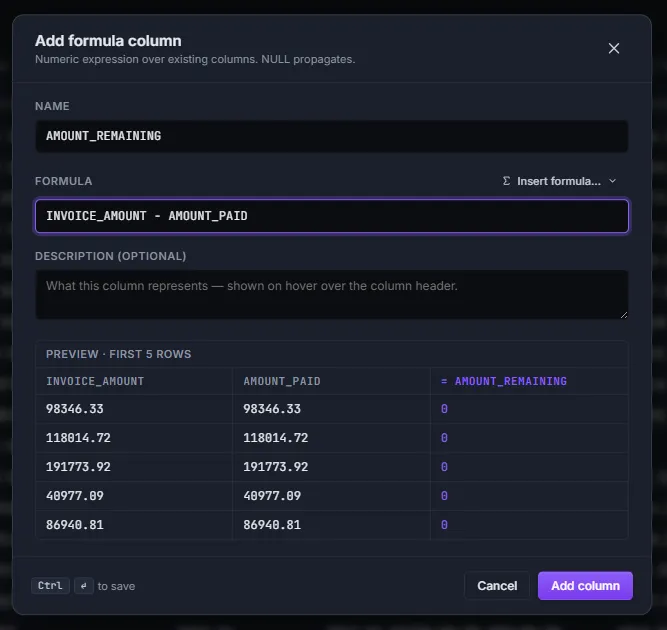
The dialog has four areas:
- Name — the column name your formula will appear under in the grid.
- Formula — the expression itself.
- Insert formula… — a dropdown of starter templates you can pick from.
- Live preview — the first 5 rows of your result set with the formula evaluated against each.
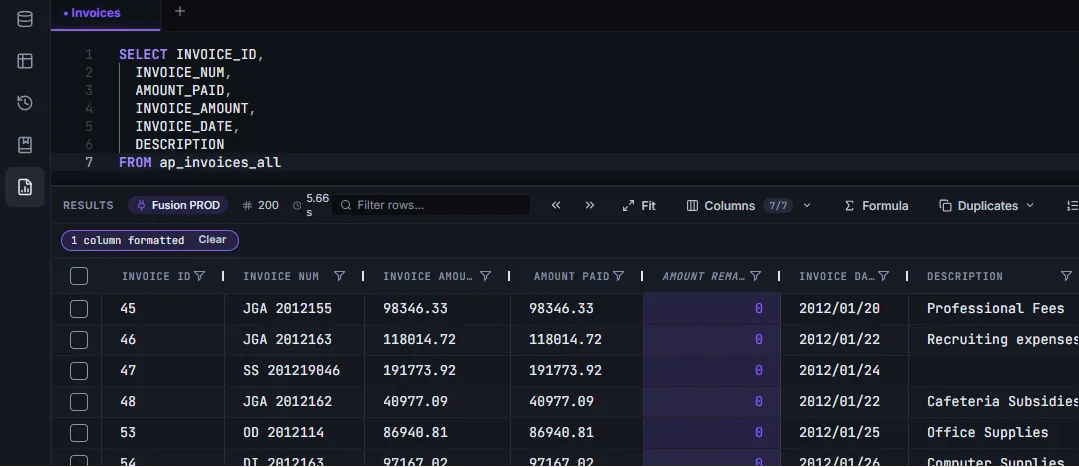
When you save, the new column appears in the grid alongside your query’s columns:
Writing an expression
Section titled “Writing an expression”Naming the column
Section titled “Naming the column”The Name is what shows up as the column header in the grid (and in the Columns picker, in exports, and in .dcanalysis files). Keep it short, unique within the tab, and meaningful — e.g. AMOUNT_DUE, MARGIN_PCT, ROUNDED_RATE.
Referencing existing columns
Section titled “Referencing existing columns”Refer to a column from your result set by its bare name. The name must match the column header exactly as it appears in the grid — including case. So if your column header reads INVOICE_AMOUNT, write INVOICE_AMOUNT; if it reads invoice_amount, write invoice_amount. The column must also be numeric.
invoice_amount - amount_paidIf you reference a column that doesn’t exist, doesn’t match the grid header’s case, or isn’t numeric, the dialog flags it before you can save.
Operators
Section titled “Operators”| Operator | Meaning |
|---|---|
+ | Addition |
- | Subtraction |
* | Multiplication |
/ | Division |
% | Modulo (remainder after integer division — note: this is not the percent shorthand below) |
( ) | Grouping |
Functions
Section titled “Functions”| Function | Returns |
|---|---|
ROUND(x) | x rounded to the nearest integer |
ROUND(x, digits) | x rounded to digits decimal places (e.g. ROUND(rate, 4) keeps 4 decimals) |
FLOOR(x) | x rounded down to the nearest integer |
CEIL(x) | x rounded up to the nearest integer |
ABS(x) | The absolute (positive) value of x |
MIN(a, b, ...) | The smallest of its arguments |
MAX(a, b, ...) | The largest of its arguments |
NVL(x, fallback) | x if x is not NULL, otherwise fallback (Oracle-style null coalesce) |
The N% shorthand
Section titled “The N% shorthand”Writing 10% in an expression is shorthand for (10 / 100) — so amount * 10% means “10 percent of amount.” It saves you the mental dividing-by-100 step.
invoice_amount * 5% means invoice_amount * 0.05gross * 12.5% means gross * 0.125Note: this is the literal
N%suffix only (a number followed directly by%). The%operator between two values (a % b) still means modulo.
Inter-formula references
Section titled “Inter-formula references”A formula column can reference another formula column you defined earlier — so you can build up calculations in steps instead of cramming everything into one long expression.
Worked example. You want a “with tax” amount that’s based on a discounted price. Create two formulas:
discounted = invoice_amount * 90%with_tax = discounted * 1.07When you save them, Data Collage works out the dependency order automatically — discounted is computed first for each row, then with_tax uses that result.
Acyclic constraint. Chains are fine; cycles aren’t. If A references B and B references A, the dialog rejects the save with a cycle error. Untangle the references and try again.
Working with NULLs
Section titled “Working with NULLs”This is the single most common surprise for people coming from Excel, so it’s worth understanding before you start writing formulas.
NULL propagates
Section titled “NULL propagates”Any NULL input to an expression makes the whole result NULL. So:
invoice_amount - amount_paid…returns NULL for every row where amount_paid is NULL. The result column will show ∅ (or blank, depending on your format) for those rows.
This is SQL semantics, not Excel semantics. Excel treats blank cells as zero in arithmetic; SQL (and Data Collage) treats NULL as “unknown,” and anything operating on unknown is also unknown. The grid follows the SQL convention.
NVL is the escape hatch
Section titled “NVL is the escape hatch”To opt out of NULL propagation on a specific column, wrap it with NVL(col, fallback) — that says “if this column is NULL, treat it as fallback.”
Worked example. Calculating amount due from invoice_amount and amount_paid, where some invoices have no payments yet (so amount_paid is NULL):
amount_due = invoice_amount - NVL(amount_paid, 0)This treats unpaid invoices as “paid zero,” so the formula gives the full invoice amount instead of ∅.
Any column you suspect might be NULL — amount_paid, discount_amount, prepaid_amount, freight, tax — is a candidate for an NVL(..., 0) wrapper.
Starter templates
Section titled “Starter templates”The Insert formula… dropdown above the Formula field has six ready-to-go starters. Click one and it gets dropped into the Formula field with placeholder column names highlighted, ready for you to replace.
| Template | Expression |
|---|---|
| Add two columns | col_a + col_b |
| Subtract two columns | col_a - col_b |
| Multiply by number | col_a * 100 |
| Divide by number | col_a / 100 |
| Percentage of column | col_a * 10% |
| Treat NULL as zero | NVL(col_a, 0) |
Live preview
Section titled “Live preview”As you type, the dialog evaluates the formula against the first 5 rows of your result set and shows each row’s input values and the computed result. This is the fastest way to confirm a formula is doing what you expect before you save it.
- Values that are NULL (or that the formula evaluates to NULL) show as
∅. - If the formula has a parse error, the preview pane shows the error message inline.
Editing and removing formulas
Section titled “Editing and removing formulas”Right-click any formula column header → Edit formula… reopens the dialog with the existing name and expression filled in. Change either, save, and the column updates.
Remove
Section titled “Remove”Right-click any formula column header → Remove formula column deletes it from the tab.
Cascading removal
Section titled “Cascading removal”If you remove a formula that other formulas reference, the dependents are dropped too — Data Collage doesn’t leave broken references behind. Each dropped formula triggers a toast notification: “Dropped formula ‘X’ — Reference no longer exists: Y.”
Auto-prune on re-run
Section titled “Auto-prune on re-run”If you re-run the SQL and the underlying columns change (a column was renamed, removed from the SELECT, or the query was rewritten), any formula whose references can’t be resolved is dropped automatically, with the same toast. Your other formulas keep working as long as their refs still exist.
What’s NOT supported in V1
Section titled “What’s NOT supported in V1”To keep the engine predictable and the validation strict, V1 is intentionally narrow. The following are not yet supported and are planned for V2:
- String operations — no concatenation, no substring, no upper/lower case
- Date arithmetic — no adding days, no date differences, no SYSDATE
- Comparisons — no
>,<,=,<> - Conditionals — no
IF, noCASE WHEN - Exponents / power — no
^or** - Trigonometry — no
SIN,COS,TAN, etc. - Aggregation — no
SUM,AVG,COUNTacross rows (formulas operate per-row only)
If you need any of these, your best bet today is to push the calculation into your SQL and let Fusion do it — then reference the result as a regular column.
Persistence
Section titled “Persistence”Formula columns are scoped per tab — each tab has its own list. They’re not saved automatically across app restarts on their own, but they are saved when you save the tab as a .dcanalysis file. See §10 — Saved Analyses for how to capture your SQL, formulas, formats, hidden columns, column order, and bind defaults as a single shareable file.