
Exports
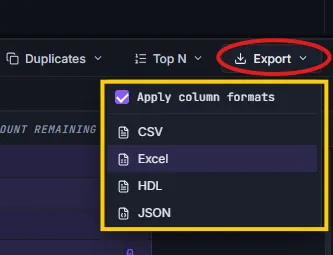
Exporting saves the current result set to a file on disk. Data Collage supports four formats — CSV, HDL, Excel, and JSON — covering everything from quick hand-offs to a colleague to feeding downstream BI tools like Power BI and Tableau.
Since multi-row Copy isn’t supported in V1, the Export menu is the recommended path for any extract beyond a single row.
Opening the Export menu
Section titled “Opening the Export menu”Click the Export button on the Results toolbar above the grid. A dropdown opens with the four formats and an Apply column formats checkbox.
Choosing a format
Section titled “Choosing a format”The most universal text format — opens in Excel, any text editor, and any data tool you can think of.
- Best for: sharing data with people who don’t have Data Collage, archiving, version control of data snapshots.
- As a Power BI / Tableau / Python source: works directly as an import source in all three.
A pipe-delimited (|) text file with the .dat extension.
- Best for: feeding extracts into HCM Data Loader workflows.
- Not a general-purpose data format — pick CSV if HDL isn’t specifically what the consumer is asking for.
A native .xlsx workbook with typed cells: numeric columns come through as Excel Number cells, dates as Date cells, and any number formats you applied in the grid (currency, percent, decimal places) are translated to Excel format strings — so the cells render correctly and SUM, AVERAGE, sort, and filter all work natively.
- Best for: hand-off to anyone working in Excel; cases where the recipient will work with the data in-place rather than feeding it to another tool.
- As a Power BI source: also works well — Power BI imports typed Excel sheets cleanly.
A structured array of row objects with column names as keys.
- Best for: consumption by scripts, APIs, or downstream tooling that prefers JSON over tabular formats.
- Not intended for opening in Excel — pick CSV or Excel for human-readable formats.
The “Apply column formats” toggle
Section titled “The “Apply column formats” toggle”The Apply column formats checkbox at the top of the Export menu controls whether the date and number formats you applied in the grid carry through to the exported file.
When ON (the default), values are exported the way you see them in the grid — $1,234.56, 2026-05-17, 12.50%, and so on. Use this when you’re handing the file to a person who will read it as-is.
When OFF, raw values are exported with no formatting applied — numbers as plain numbers, dates as ISO strings. Use this when the file is going to a downstream system (Power BI, a SQL load script, a Python notebook) that prefers to handle its own type coercion and formatting.
Rule of thumb: ON for humans, OFF for systems.
What gets exported (and what doesn’t)
Section titled “What gets exported (and what doesn’t)”What carries over
Section titled “What carries over”- Visible columns only. Columns hidden via the right-click menu or the Columns picker are excluded from the export.
- Current column order. If you’ve dragged columns to reorder them, that order is what ends up in the file.
- Formula columns. Any derived columns you defined (see §8) are included, with their computed values.
What does NOT carry over
Section titled “What does NOT carry over”- Grid filters (Find duplicates, Top N, per-column filters) and sort state are presentational only — they affect what you see in the grid, not what gets exported.
- The export is always the full original result set, in the original row order, exactly as Fusion returned it.
If you want to export only a filtered subset, do the filtering in your SQL with a WHERE clause (and the sort with ORDER BY) and re-run the query before exporting.
Filename and location
Section titled “Filename and location”When you pick a format, the system file picker opens with a default filename that combines the tab title with a timestamp — for example, AP_Invoices_20260518-143022.xlsx. Pick any folder, rename the file if you want, and click Save.
Once the file is written, a toast confirms success with a Reveal in folder action — click it to open the file’s location in Explorer.
A note on large exports
Section titled “A note on large exports”For very large result sets (tens of thousands of rows and up), the export can take a few seconds to write to disk while Data Collage encodes the data and your machine flushes the file. Wait for the success toast before opening the file — Excel in particular doesn’t like being opened on a half-written file. If nothing seems to be happening, give it 10–15 seconds before assuming something has gone wrong.