
Settings
Settings is where you tune the way Data Collage looks, where it puts your files, what defaults apply to your result grids, and how your license is managed. Everything in Settings is personal to your machine — these aren’t shared across users or devices.
Opening Settings
Section titled “Opening Settings”Two ways to open the Settings dialog:
- File → Settings in the menu bar
- Ctrl+, (anywhere in the app)
The dialog has five tabs down the left side: Application, Folders, Formats, License, and About.
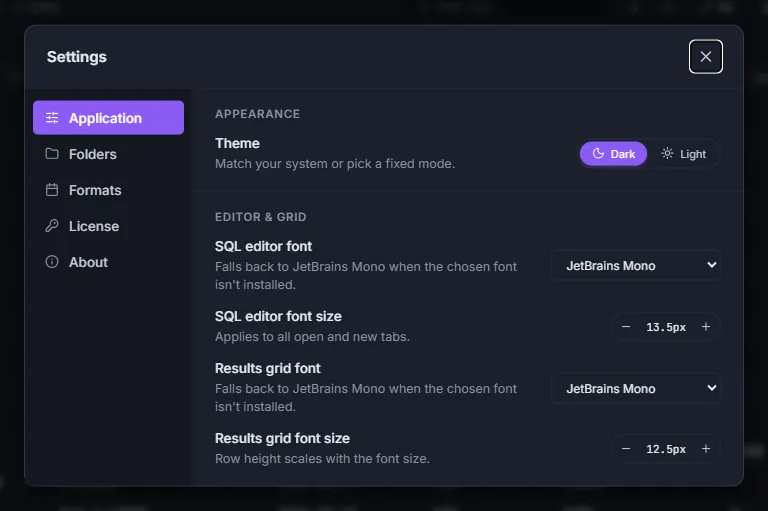
Application
Section titled “Application”The first tab covers appearance and font sizes.
Choose Dark or Light using the side-by-side button group. Changes take effect immediately — no restart needed. The editor’s syntax highlighting and the rest of the app re-theme together.
Colour theme
Section titled “Colour theme”Below the Dark / Light switch, pick a colour theme: Collage, Fjord, Cobalt on Slate, or Plum on Graphite. Each has its own dark and light variant, so the two settings combine — for example Fjord in light mode. The choice applies to the editor, grid, dialogs, and menus at once. In the SQL editor font picker, Theme default follows whichever font the colour theme uses; the theme fonts are bundled with the app, so nothing needs to be installed.
SQL editor font size
Section titled “SQL editor font size”A stepper control going from 10 to 24 px in 0.5-px increments. The value you pick applies to all currently open editor tabs and any new ones you open.
Results grid font size
Section titled “Results grid font size”A stepper from 10 to 20 px in 0.5-px increments. Row height scales with the font size automatically — bigger font, taller rows, no extra setting to tweak.
Folders
Section titled “Folders”This tab controls where Data Collage reads and writes user files.
Auto-save folder
Section titled “Auto-save folder”The folder where Data Collage writes modified unsaved tabs when you close the app or a tab without saving — your safety net for the “I just closed the app and lost my draft” moment.
Files are written as:
DataCollage_<tab title>_<timestamp>.sqlIf you do close the app with unsaved drafts, look here first. The path is shown directly under the label; click Browse to pick a different folder.
Analyses folder
Section titled “Analyses folder”The folder where .dcanalysis files (Saved Analyses — see §10) are read from and written to. The Save Analysis dialog uses this as the default location for new files, and the Analyses panel scans this folder for the analyses it lists.
Note: changing this path does not move existing files. If you want your existing
.dcanalysisfiles to appear in the new location, copy them manually (with File Explorer) before or after the change.
Formats
Section titled “Formats”This tab controls the default formatting applied to your result grids.
Default date format
Section titled “Default date format”The format applied automatically to columns that Data Collage detects as date columns whenever a new result set comes in. Pick from the same list of date formats available in the per-column Format as date… menu, or choose No formatting to keep raw values from Fusion.
Per-column overrides set from the grid header menu (see §7) always win over this default.
Reset session formats
Section titled “Reset session formats”A Reset button that clears the format overrides you’ve applied during your current session — both session-wide (date) and per-column (date and number) — and falls back to the Default date format above for date columns. Use it when your grid has accumulated a lot of one-off format tweaks and you want a clean slate without losing your default date setting.
The Default date format field above is not affected by Reset — only the in-session overrides on top of it.
If you want per-column number formats to persist instead of resetting at the next session, save the tab as a Saved Analysis — analyses capture all formats.
License
Section titled “License”The License tab is where you check the state of your activation and manage the license going forward.
License status panel
Section titled “License status panel”Read-only display showing:
| Field | What it tells you |
|---|---|
| Status | Active or Inactive (with reason if inactive). |
| Customer | The email address associated with the license. |
| Plan | The product and plan tier. |
| Expires | When the current license expires. |
| Last validated | The most recent time Data Collage successfully checked the license server. |
Re-validate now
Section titled “Re-validate now”Forces a fresh check against the license server. Use this when:
- You’ve just activated a renewal and want to confirm the new expiration is picked up.
- The app’s been offline for a while and you want to make sure your status is current.
- You’re troubleshooting an activation issue with Newarc support.
Change license
Section titled “Change license”Drops you back to the activation screen so you can enter a different license key. Useful when:
- You’ve upgraded your plan and have a new key.
- You’re moving the install to a different entitlement (e.g. from a trial to a paid license).
After clicking Change license, the activation flow is the same as a fresh install — see §3 — Activate your license.
A short tab — mostly useful for reporting issues.
- Data Collage — name and “by Newarc Consulting” line.
- Version — the installed version number (
1.1.3and so on).
When you write to us at datacollage@newarcinc.com with a bug report or question, please include the version number from this tab — it helps us figure out what release you’re on.
Where Data Collage stores your data
Section titled “Where Data Collage stores your data”For the curious (and for anyone setting up backups), Data Collage stores its data in two places on your machine:
- Local database (
datacollage.db) — saved connections (without passwords), query history, library favorites, and other internal state. Lives in your Windows app-data folder:%APPDATA%\<Data Collage bundle>\datacollage.db. - Saved passwords — kept in the Windows Credential Manager, separate from the database. Never written to disk in plain text.
Folder paths you’ve configured (Analyses folder, Auto-save folder) live wherever you pointed them. .dcanalysis and .sql files are written there as ordinary files you can back up, copy, or commit to source control like any other.
Reinstalls and updates leave all of this untouched — your connections, history, favorites, saved analyses, and Windows-stored passwords all survive an upgrade.