
Saved Analyses
A Saved Analysis captures your entire workspace state for a query — not just the SQL, but every customization you’ve applied on top of it. Reopen one a week later and you’re back exactly where you left off: same SQL, same formula columns, same column formats, same hidden/reordered columns, same bind defaults.
This is the feature to reach for whenever you find yourself thinking “I’d run this again next month if I could remember everything I tweaked.”
What gets saved
Section titled “What gets saved”A Saved Analysis stores all of the following from the active tab:
- SQL text — exactly what’s in the editor
- Formula columns — names and expressions
- Column formats — date and number formats you applied per column
- Hidden columns — which columns are currently hidden in the grid
- Column order — the order you’ve dragged them into
- Bind variable defaults — the values you last entered in the Bind variables dialog
What’s not saved: the result set itself (analyses are re-run against live data when reopened) and the active connection (covered below).
.dcanalysis files
Section titled “.dcanalysis files”Saved Analyses are written as .dcanalysis files on disk. They’re portable — you can move, copy, share, or back them up like any other file. The format isn’t a plain text file you’d edit by hand; treat it as a self-contained Data Collage artifact and open it through the app.
Three “save” concepts in Data Collage
Section titled “Three “save” concepts in Data Collage”Data Collage has three different things people sometimes refer to as “saving a query.” Here’s how they compare:
| Concept | What’s saved | File | Source of truth |
|---|---|---|---|
| Save | The SQL text only | .sql | The text editor |
| Save Analysis | SQL plus workspace state (formulas, formats, hidden cols, column order, bind defaults) | .dcanalysis | The full tab |
| Query Library | Curated built-in queries (read-only) | n/a | Bundled with Data Collage |
Use Save when you just want to capture SQL to share with a non-Data-Collage user or version-control it. Use Save Analysis when you want to capture your full setup so you (or a colleague) can pick up exactly where you left off. The Query Library is covered in §11 — it’s a catalog of bundled examples, not a place where your saved work lives.
Saving an analysis
Section titled “Saving an analysis”Two save options
Section titled “Two save options”From the File menu:
- Save Analysis — saves changes back to the analysis file currently backing this tab. Disabled if the tab isn’t backed by an analysis file yet.
- Save as Analysis… — opens the Save Analysis dialog and creates a new
.dcanalysisfile from the current tab.
The Save Analysis dialog
Section titled “The Save Analysis dialog”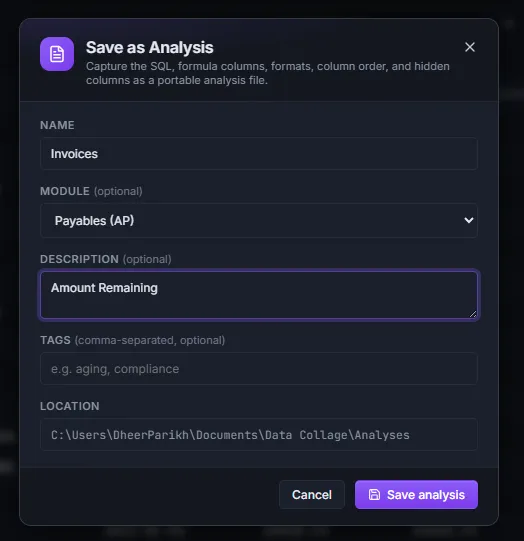
| Field | What it’s for |
|---|---|
| Name | Required. The display name in the Analyses panel. Best when it’s short and outcome-oriented — e.g. “AP unpaid invoices > 30 days” beats “AP query 2”. |
| Module | Optional. Pick from the dropdown (AP, AR, GL, HCM, etc.) so the analysis groups under the right Fusion module in the panel. |
| Description | Optional. One or two sentences answering “what does this analysis answer, and what should the next person know about it?” |
| Tags | Optional, comma-separated. 1-3 short tags for filtering — e.g. aging, compliance, month-end. |
| Location | Read-only. Shows the Analyses folder where the file will land. Configure this in §14 — Settings. |
Working with saved analyses
Section titled “Working with saved analyses”The Analyses panel
Section titled “The Analyses panel”All your saved analyses appear in the Analyses panel, accessible from the activity bar on the left. They’re grouped by Module, with a search box and a Module filter at the top.
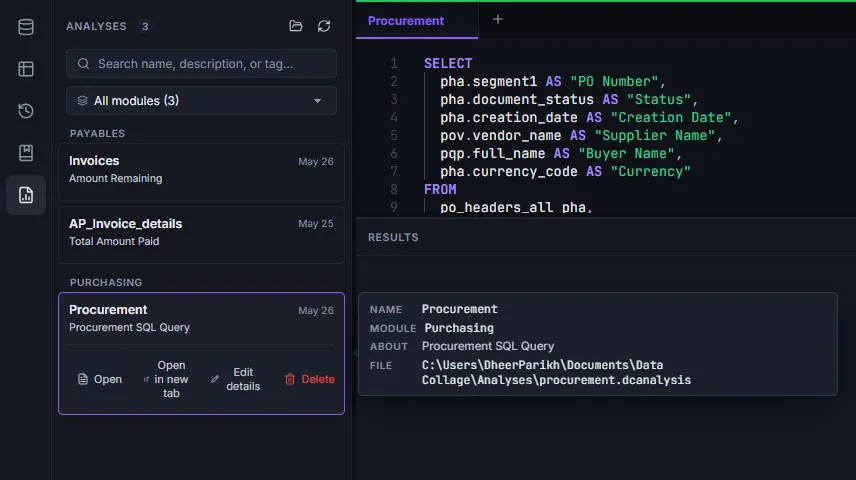
Click any analysis to expand it; the expanded view shows the description, tags, and the available actions.
Available actions
Section titled “Available actions”Each saved analysis supports four operations:
- Open — load the analysis into the current tab (replaces whatever’s there).
- Open in new tab — load into a fresh tab, keeping your current work untouched. This is the safer default.
- Rename — open a dialog to change the Name, Module, Description, or Tags. The underlying file is renamed to match.
- Delete — removes the
.dcanalysisfile from disk. Not recoverable from inside Data Collage — restore from a backup or your file system’s trash if you need to undo.
Editing an analysis
Section titled “Editing an analysis”The flow for updating a saved analysis is:
- Open (or Open in new tab) the analysis.
- Make changes — edit the SQL, add a formula column, change a format, hide a column, reorder columns, update bind values.
- File → Save Analysis to write the changes back to the same
.dcanalysisfile.
If you want to keep the original and create a variant, use File → Save as Analysis… instead — it creates a new file from the current state.
Opening an analysis from disk
Section titled “Opening an analysis from disk”To open a .dcanalysis file that lives outside your configured Analyses folder (one a colleague sent you, for example):
- Click the folder icon at the top of the Analyses panel and pick the file, or
- Press Ctrl+O and pick the file in the file dialog.
Search and filter
Section titled “Search and filter”The Analyses panel has two ways to narrow what you see:
- Search box — matches against Name, Description, and Tags.
- Module filter — dropdown below the search box, with row counts per module.
Combine them — e.g. filter to AP and search for aging to surface every AP analysis tagged or described with aging-related content.
Bind defaults
Section titled “Bind defaults”Any values you entered in the Bind variables dialog the last time you ran the query are saved as part of the analysis. When you reopen the analysis and run it again, the dialog pre-fills with those values — so a “month-end” or “weekly run” analysis remembers your last set of dates, supplier IDs, ledger codes, or whatever else parameterizes the query.
You can always change the values before clicking Run.
Closing unsaved work
Section titled “Closing unsaved work”If you close a tab (or the whole app) with unsaved changes to an open analysis, Data Collage prompts you before discarding anything:
- Save Analysis — writes the changes back to the file and closes the tab.
- Don’t save — closes the tab without writing changes. The next time you open the analysis, you’ll see the previously saved state.
- Cancel — keeps the tab open so you can decide what to do.
Sharing analyses
Section titled “Sharing analyses”.dcanalysis files are designed to be shared. Email one to a colleague, drop one on a shared drive, or check one into a repository — anyone else with Data Collage opens it via Open Analysis (the folder icon in the Analyses panel) or Ctrl+O, and they have the entire setup: same SQL, same formulas, same formats, same bind defaults.
To share a folder of analyses with your whole team, keep it in a SharePoint library synced with OneDrive — see Saving to SharePoint.
This is the recommended way to hand off reproducible analyses across a team.
Connection when reopening
Section titled “Connection when reopening”When you open a .dcanalysis file, Data Collage decides which connection the analysis should run against:
- If you have a pinned default connection (see §5 — Pinning a default connection), the analysis automatically runs against that.
- If no connection is pinned, the tab opens without an active connection — pick one from the Connections panel before running.
This means analyses are environment-independent on disk — the same .dcanalysis file works against your Prod, UAT, or SIT instance depending on which connection you have pinned when you open it.