
The SQL Editor
The editor in Data Collage is built around writing Oracle SQL against Fusion. It’s a modern code editor — syntax highlighting, autocomplete, multi-cursor — with extra help layered on top for the tables and functions you actually work with.
You can have multiple tabs open at once, side by side along the top of the editor area.
- New tab —
Ctrl+T, or the + at the end of the tab strip, or File → New Tab. - Switch between tabs by clicking them; close with the × on the tab.
- Each tab keeps its own session state — SQL text, last result set, applied column formats, formula columns, hidden columns, column order, and bind variable values. Running a query in one tab doesn’t disturb any other.
- Open tabs are remembered across app restarts — Data Collage restores the tab list, each tab’s SQL text, the active tab, the file path backing each tab (if any), and the connection it was using.
- Session-only state is not restored after a restart — results, column formats, formula columns, hidden columns, column order, and bind values reset. To preserve all of that across restarts, save the tab as a Saved Analysis (
.dcanalysis) — see §10.
Writing queries
Section titled “Writing queries”Syntax highlighting
Section titled “Syntax highlighting”SQL keywords, string literals, comments, and :bind variables each get distinct colors. The editor ships with a Dark theme and a Light theme — pick one in §14 — Settings.
Autocomplete
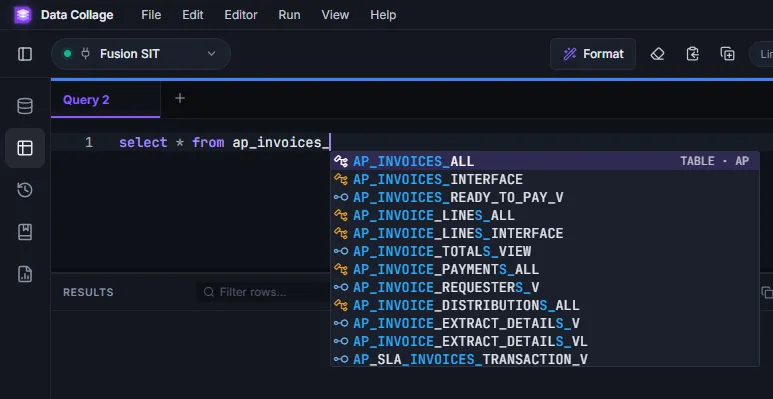
Section titled “Autocomplete”A dropdown appears as you type, covering four categories:
- SQL keywords —
SELECT,JOIN,WHERE, and so on. - Fusion table names — type a few letters of a table name (e.g.
ap_inv) and pick from the list. Tables shown come from the metadata bundled with Data Collage. - Column names — type
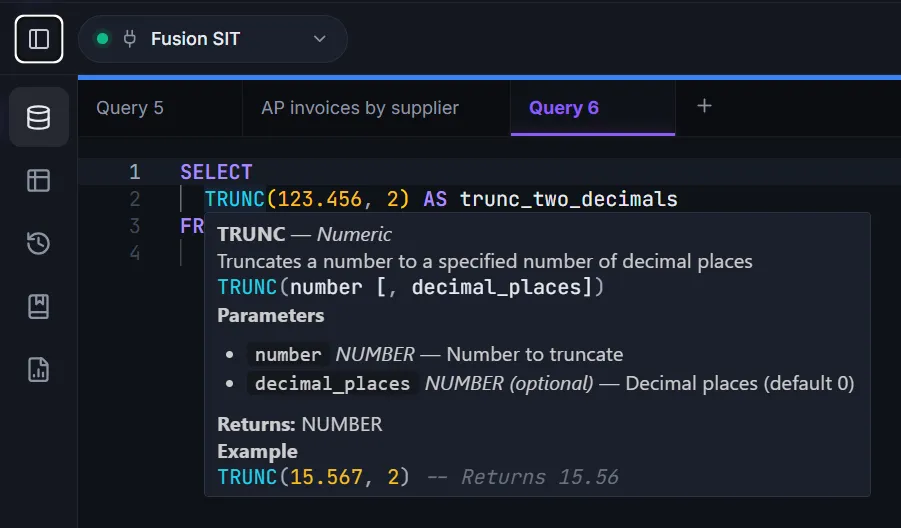
alias.(the alias you used in yourFROMclause) and the dropdown scopes to that table’s columns. - Oracle function signatures — type a function name and the dropdown shows its signature and a one-line description.
Hover docs
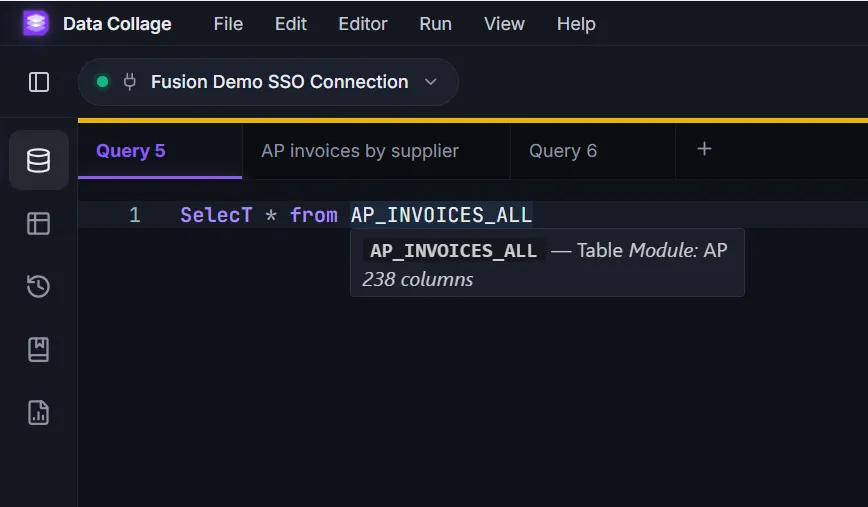
Section titled “Hover docs”Hover your mouse over a known Fusion table name and a tooltip shows its description.
Hover over an Oracle function and you’ll see its signature and description.
Comments
Section titled “Comments”Standard Oracle SQL comment syntax works:
-- single-line comment/* block comment */
Comments are stripped before the SQL is sent to Fusion — feel free to leave plenty in your saved analyses.
Running queries
Section titled “Running queries”Data Collage decides what to execute based on the state of your editor when you hit Run. There are three Run modes, in priority order:
- Selection wins. If you have any non-empty text selected, that exact text is what runs. Use this to test a sub-query, a CTE in isolation, or one part of a larger script.
- Multi-statement at cursor. If the tab contains two or more SQL statements separated by
;, the editor runs the one your cursor is currently inside. A small hint above each statement reads “Statement N of M — Ctrl+Enter to run” so you can see which one will run. - Whole tab. If neither of the above applies, the entire content of the tab is what runs.
Run shortcuts
Section titled “Run shortcuts”These three are equivalent:
- F5
- Ctrl+Enter (while focus is in the editor)
- The Run button on the toolbar
Bind variables
Section titled “Bind variables”Use :name anywhere in your SQL to mark a value the user should supply at run time. For example:
SELECT *FROM ap_invoices_allWHERE invoice_date BETWEEN :p_from_date AND :p_to_date AND invoice_num = :p_invoice_numWhen you Run, a Bind variables dialog pops up listing each placeholder. Fill in the values and click Run.
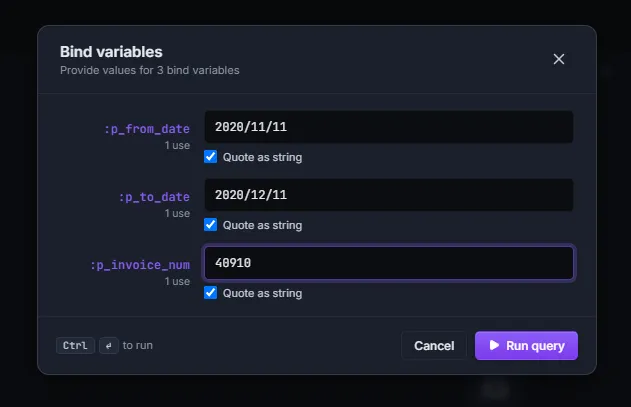
A few helpful behaviors:
- Values stay filled in per tab for the rest of your session — so re-running with different dates is fast.
- The validator and Fusion never see the
:namesyntax — Data Collage substitutes the values before the SQL leaves your machine.
Bind values can also be saved as defaults into a
.dcanalysisfile — see §10 — Saved Analyses.
Format SQL
Section titled “Format SQL”To pretty-print the SQL in the active tab — consistent keyword case, indentation, line breaks — use:
- Shift+Alt+F, or
- Edit → Format SQL in the menu bar
The formatting is in-place; your cursor stays where it was.
Short codes (snippets)
Section titled “Short codes (snippets)”Short codes let you type a small prefix and expand it into a longer SQL snippet. Data Collage ships with a starter set:
| Trigger | Expands to |
|---|---|
ssf | SELECT * FROM |
sfc | SELECT COUNT(*) FROM |
sfw | SELECT * FROM \nWHERE |
jl | LEFT JOIN ON |
ji | INNER JOIN ON |
nvl | NVL(expr1, expr2) |
dec | DECODE(expr, search1, result1, default) |
cw | CASE WHEN THEN ELSE END |
To add your own (and to view, edit, or remove the bundled ones), open Help → Short codes…. Custom short codes are saved to your local profile and persist across sessions.
Saving and opening .sql files
Section titled “Saving and opening .sql files”A SQL tab can be saved as a .sql file on disk — useful for sharing a raw query with a colleague who doesn’t have Data Collage, version-controlling your SQL, or simply backing up a working draft.
- Ctrl+S — Save. If the tab is already backed by a file, this writes to that file. Otherwise it prompts for a location.
- Ctrl+Shift+S — Save As. Always prompts for a location.
- Ctrl+O — Open a
.sql(or.txt) file from disk into a new tab.
Once a tab is backed by a file, the tab title shows the file name; subsequent Saves write back to the same path without prompting again.
If you want to save more than just the SQL — your applied formats, formula columns, hidden columns, column order, and bind defaults — use a Saved Analysis (
.dcanalysis) instead. See §10.
Keyboard shortcuts
Section titled “Keyboard shortcuts”| Action | Shortcut |
|---|---|
| Run query | F5 or Ctrl+Enter |
| Format SQL | Shift+Alt+F |
| Save | Ctrl+S |
| Save As | Ctrl+Shift+S |
Open .sql file | Ctrl+O |
| New tab | Ctrl+T |
| Toggle sidebar | Ctrl+B |
| Open Settings | Ctrl+, |