
Metadata Tab
The Metadata tab is a browsable directory of Fusion’s data dictionary, right inside Data Collage. Use it to discover tables, find the right column for a join, look up a column’s data type or description, and drop names straight into your SQL without typing.
Bundled metadata content (table coverage, column descriptions, cross-references) is continually updated and expanded with each release — what ships in V1 is the starting point, not the final state.
Panel anatomy
Section titled “Panel anatomy”Open the Metadata panel from the activity bar on the left.
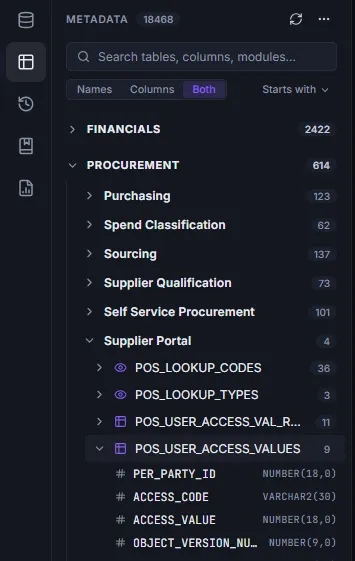
Counts at the top
Section titled “Counts at the top”The panel header shows the total table count in the catalog. When you’ve imported extra metadata via the overlay feature (covered below), a small “+N overlay” pill appears next to the count.
Module groupings
Section titled “Module groupings”Tables are organized by Fusion module — AP, AR, GL, HCM, FA, INV, and so on — and shown as collapsible sections. Click a module header to expand or collapse its tables.
Table rows
Section titled “Table rows”Each table inside a module group shows:
- A chevron to expand the table and reveal its columns.
- An icon indicating what kind of object it is — a grid icon for a base table, an eye icon for a database view.
- The table name.
- A small column count on the right.
- An “overlay” pill if the table came from an imported overlay (see below).
Column rows
Section titled “Column rows”Expanding a table reveals its columns. Each column row shows:
- A small hash icon.
- The column name.
- The column type (
VARCHAR2,NUMBER,DATE, …).
Hover descriptions
Section titled “Hover descriptions”- Tables — hovering on a table name (when it has a description) brings up a side tooltip with the table’s full description. Useful for confirming you’ve got the right table before expanding it.
- Columns — every column row has a native tooltip carrying the column’s description; hover over the row to read it.
Searching
Section titled “Searching”Search is the fastest way to navigate the catalog. The search box at the top of the panel matches against:
- Table names (
ap_invfindsAP_INVOICES_ALL,AP_INVOICE_LINES_ALL, etc.) - Column names (
vendor_idlights up every table containing that column) - Module names
- Table and column descriptions
When you type a query, matching module groups auto-expand so the results are visible immediately — no need to click through to drill down.
Inserting names into the editor
Section titled “Inserting names into the editor”The Metadata panel is wired up so the names you find can be dropped straight into your active SQL editor — no copy-paste required.
Inserting a single name
Section titled “Inserting a single name”- Double-click a table name → inserts the table name at the cursor in the active editor tab.
- Double-click a column name → inserts the column name at the cursor in the active editor tab.
The editor where the insert lands is the active tab; click into the editor where you want the text before double-clicking, or just trust that the last tab you used is the target.
Multi-selecting columns
Section titled “Multi-selecting columns”When you want several columns from a table at once (the common SELECT-list case), the Metadata panel supports multi-select with familiar modifiers:
- Plain click on a column does nothing — clicking around to browse won’t accidentally start a selection.
- Ctrl+click — toggles a single column in or out of the selection.
- Shift+click — selects a range from the last column you Ctrl-clicked (the “anchor”) to the column you just shift-clicked.
- Selection is scoped to one table at a time. If you Ctrl-click a column in a different table, the previous selection clears and the new table becomes the active selection.
The selection pill
Section titled “The selection pill”When you have one or more columns selected, a selection pill appears on the table’s row replacing the column count. It shows:
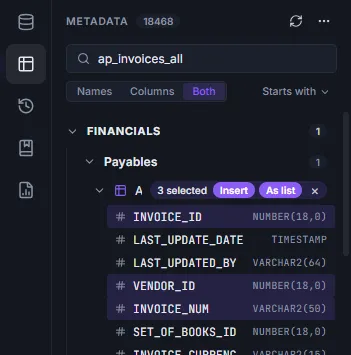
- “N selected” — the count.
- Insert — drops the selected columns as a comma-separated list on one line:
invoice_num, invoice_date, vendor_id
- As list — drops them one per line with trailing commas (the SELECT-list style):
invoice_num,invoice_date,vendor_id
- × — clears the selection without inserting.
After an Insert or As list, the selection clears automatically — ready for the next round.